Your usual breakfast, without retyping.
Some meals are familiar enough that starting over adds little. Log Again lets you choose a meal you have recorded before, then check that today’s version still fits.
IN THE APP
Keep your usual close
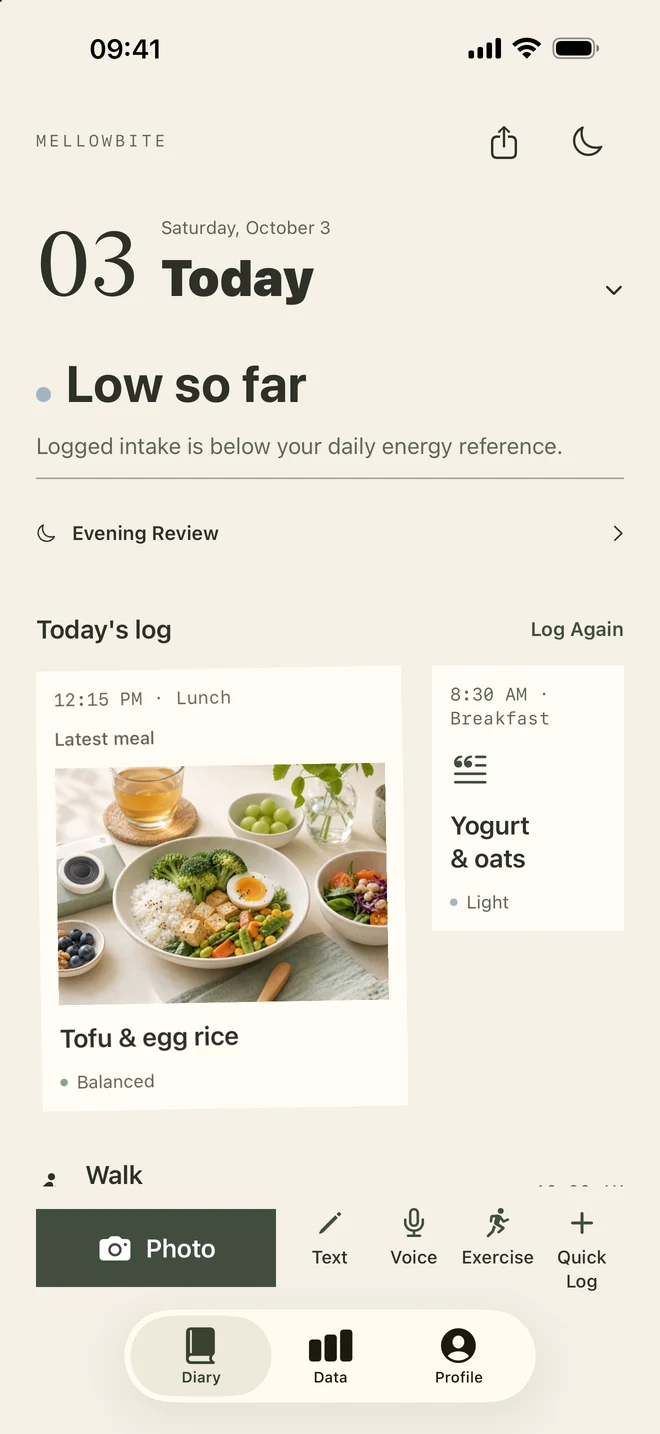
- Select the dayOpen Diary and select the day you want to record.
- Open Log AgainChoose Log Again beside the meal timeline.
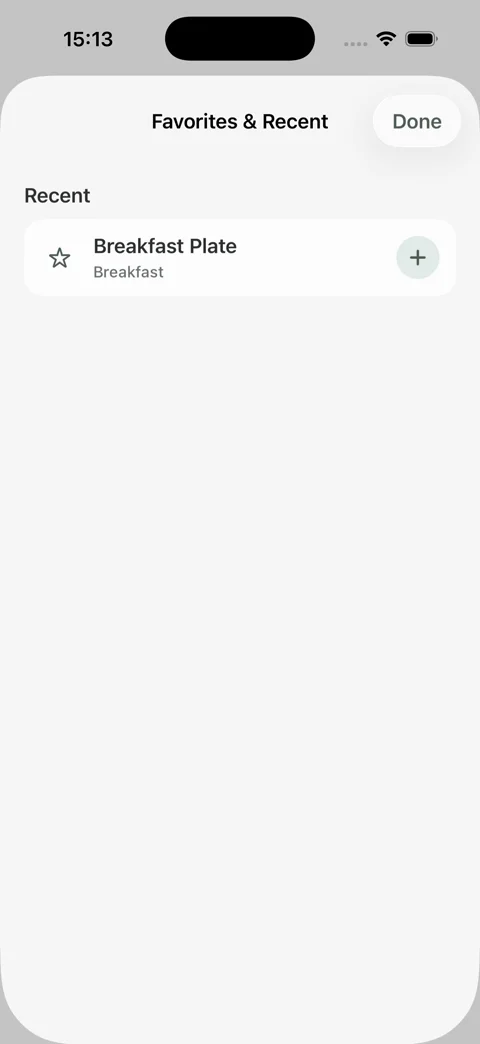
- Choose a familiar mealSelect the familiar meal from your recent or favorite meals. The selection adds a new record to the selected day.
- Check what changedCheck the new entry. If today’s food or amount differs, use the adjustment action or open the meal to make a correction.
A WORKED EXAMPLE
The same breakfast. A new record.
Start by selecting the date you are logging for. Reuse copies the saved estimate into a new entry; it does not establish that today’s ingredients or portion were identical.
Frames from MellowBite’s published product walkthrough, recorded with example data in an earlier English interface. Current screens appear above; wording and layout may differ.
01 / Choose the familiar meal
02 / Check the new record
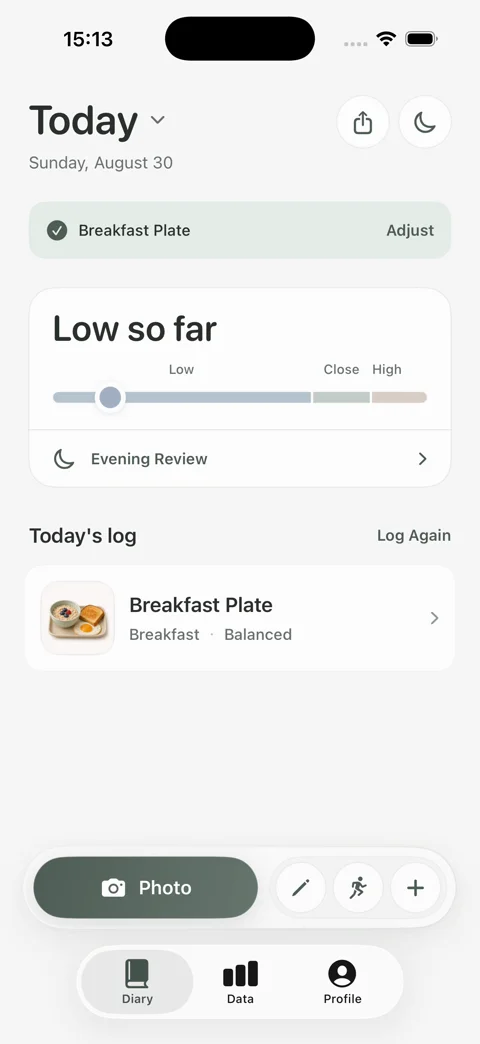
If the original meal itself needs a correction, open the original date separately. After logging again, check the date and time of the new entry and remove an accidental duplicate rather than treating it as another meal.
Start with one meal you already know
The example in our Reel begins with an ordinary breakfast: oatmeal, toast, and an egg. The useful part is the familiar recording task: find a previously saved meal and add it again.
You need an existing meal to reuse. If your list is empty, record the meal once by photo, voice, text, or Quick Log. A reusable entry is a starting point for another day, rather than a fixed recipe or a promise of identical energy.
A familiar name can still hide a different portion
The same breakfast can change: a larger bowl, another slice, or more butter. Reusing a meal carries forward its recorded information, so check it against this occasion.
Open the new record if something has changed. Adjust the portion or correct the foods as needed. There is no need to recreate an entire familiar meal just because one detail differs.
A new record belongs to the day you selected
Log Again is a deliberate action. It does not assume that you ate the same meal today, schedule future meals, or fill gaps automatically.
After adding it, look at the selected day’s timeline. The daily state describes the available records. Reusing breakfast alone does not make an otherwise incomplete day complete.
About the estimates
MellowBite supports everyday awareness. Foods, portions, and energy values are approximate. The app does not provide medical advice, nutrition therapy, diagnosis, or a weight-loss prescription.